Documentation
WhatsApp Campaigns
WhatsApp Campaigns allow you to connect with your customers through the world's most popular messaging app. AlgorithmX seamlessly integrates with the WhatsApp Business API, allowing you to send targeted, highly-personalized broadcasts to your segments at scale.
1. Prerequisites
Before launching a WhatsApp campaign, ensure the following requirements are met:
- Verified Sender ID: Your business phone number must be verified and connected to your AlgorithmX workspace.
- Approved Templates: Meta (Facebook) requires all outbound promotional messages to use pre-approved templates. Ensure you have created your templates in Library > Whatsapp Templates and that their status is "Approved".
- Opt-In Contacts: Your targeted Segment or Contact List must contain valid phone numbers (including the international country code) of users who have explicitly opted in to receive your messages.
2. Step-by-Step Guide
Step 1: Initialize Campaign & Select Audience
Navigate to CAMPAIGNS > Whatsapp Campaigns and click + New Campaign. You will land on the primary setup interface.
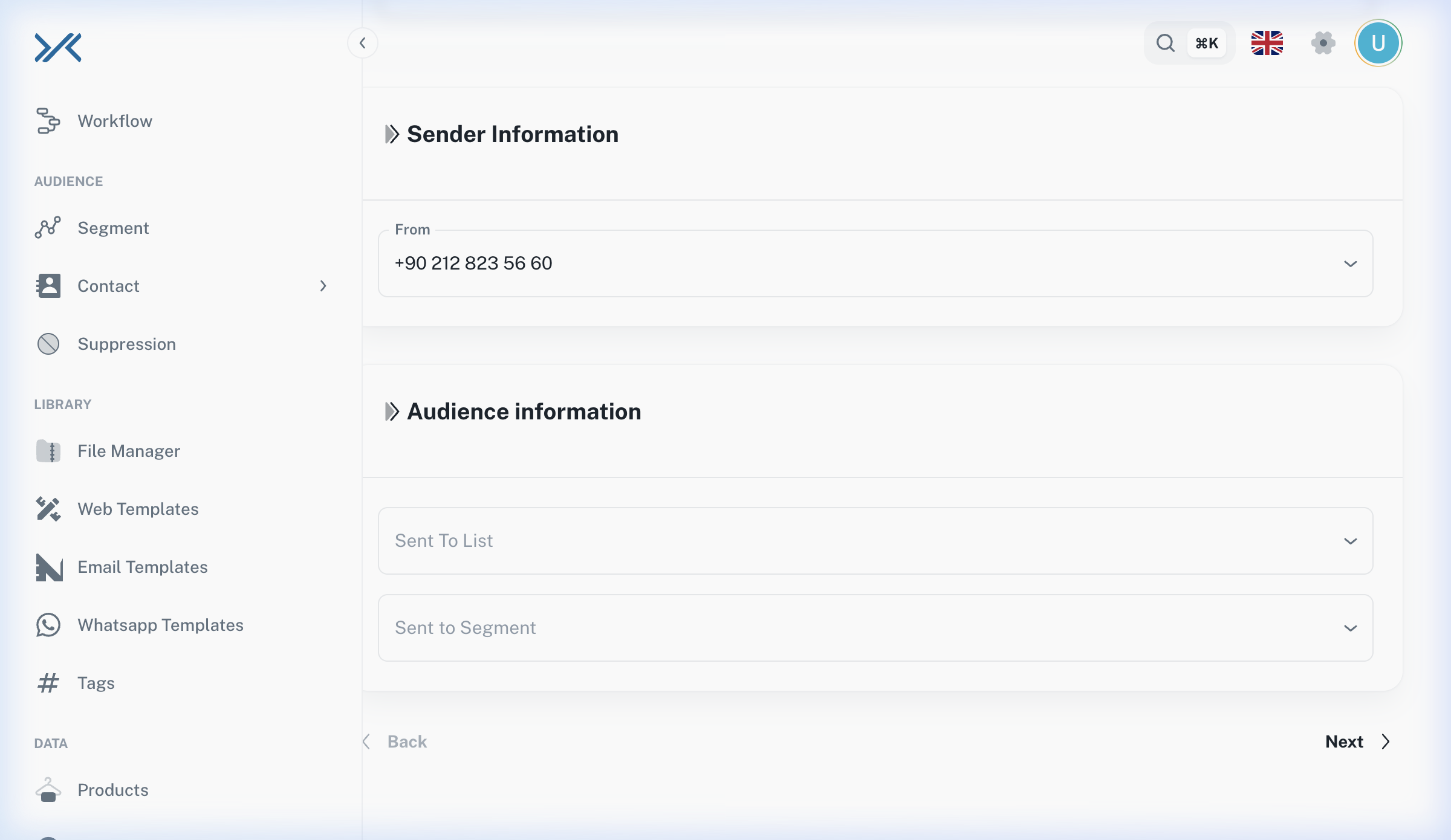
- Campaign Name & Language: Enter an internal tracking name and select the language for this campaign.
- Sender Information: Select the verified
Fromnumber you wish to use. - Audience Information: Choose whether to target a static Sent To List or a dynamic Sent to Segment.
Step 2: Select & Configure Template
Once the audience is set, proceed to select the message template.
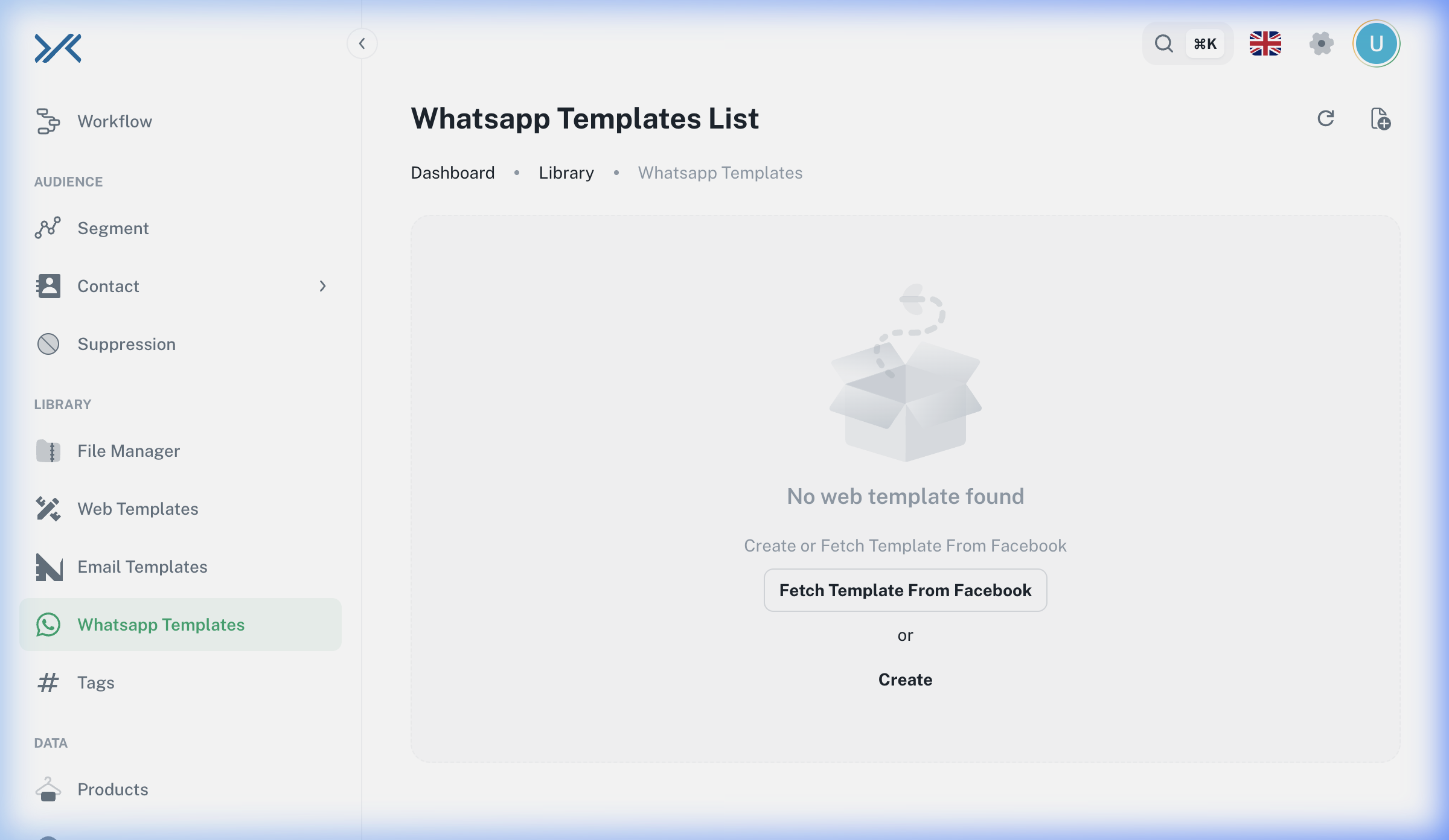
- Choose an approved template from your library.
- If your template contains variables (e.g.,
{{1}}), a configuration section will appear. - Map the template variables to the dynamic customer attributes (e.g., map
{{1}}toContact.FirstName) to ensure personalization.
Step 3: Campaign Timing
Finally, decide when your message will reach the customers.
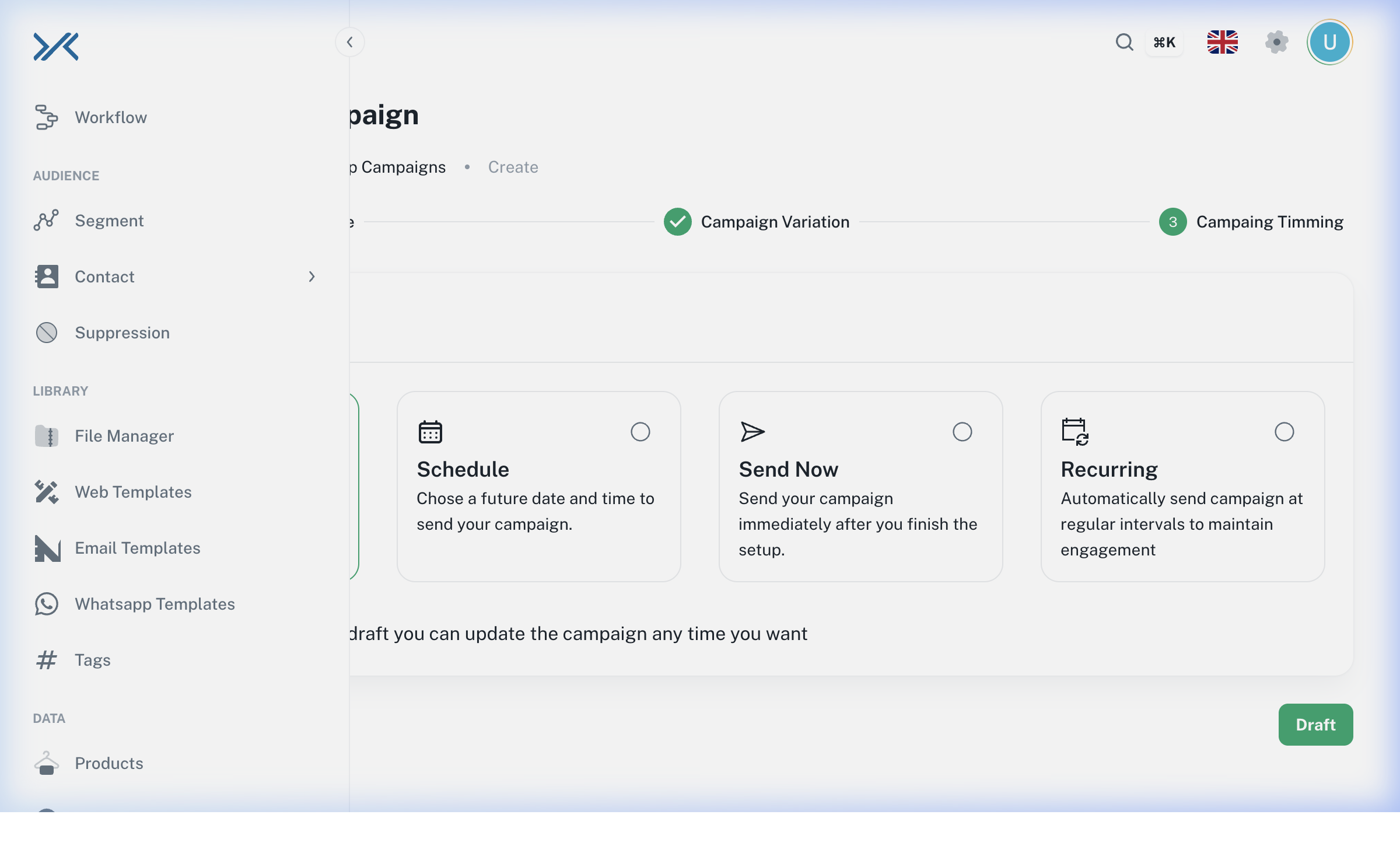
- Review the summary of your audience size.
- Choose Send Now for immediate dispatch, or Schedule for Later to pick an optimal date and time.
- Click Publish.
3. Configuration Reference
The following table details every field available during the WhatsApp Campaign creation process.
| Field Name | Type | Description / Best Practice |
| :--- | :--- | :--- |
| Campaign Name | Text | An internal identifier. Best Practice: Use a consistent naming convention (e.g., [Promo] Eid Sale 2026 - Active Users). |
| Campaign Language | Dropdown | The language matching your template. Ensures AlgorithmX loads the correct localized version of the template. |
| From | Dropdown | Your verified WhatsApp Sender numbers. If the dropdown is empty, check your WhatsApp integration settings. |
| Sent To List | Dropdown | Static lists of contacts. You can select one or multiple lists. |
| Sent to Segment | Dropdown | Dynamic groups of users based on behavioral rules. Ideal for highly targeted campaigns. |
| Template Selection | Picker | Only Approved templates from your Library will appear here. |
| Variable Mapping | Dynamic | Appears only if the template has placeholders. Map these to CDP properties (like First Name, Last Purchase Date). |
| Timing Action | Radio | Options: Send Now or Schedule for Later. Scheduled campaigns can be paused before they launch. |
4. Best Practices & Troubleshooting
Best Practices for High Delivery
- Respect Timezones: Avoid scheduling promotional messages during late night hours in your target audience's timezone.
- Personalize: Always use variable mapping to include the customer's name. Personalized messages have a significantly higher response rate and lower block rate.
Common Errors
[!WARNING] Error: "Template not found or pending approval" Meta strictly regulates templates. If you just created a template in the Library, it may take anywhere from 5 minutes to 24 hours to be approved by WhatsApp. You cannot use it in a campaign until its status changes to "Approved".
[!CAUTION] High Bounce Rates If a large percentage of your messages fail to deliver, it is usually because the contact numbers are missing country codes. Ensure your CDP data normalizes all phone numbers to standard E.164 format (e.g.,
+90...or+966...).